
Java Swing တွင် JPasswordField အသုံးပြုခြင်း
Java Swing မှာ JPasswordField ဆိုတာဟာ လျှို့ဝှက်နံပါတ် (password) လိုမျိုး အရေးကြီးတဲ့ အချက်အလက် (sensitive data) တွေကို User ဆီကနေ input အဖြစ် ရယူဖို့အတွက် အသုံးပြုတဲ့ component တစ်ခု ဖြစ်ပါတယ်။ JPasswordField ဟာ JTextField နဲ့ ဆင်တူပေမဲ့၊ သူ့မှာ ရိုက်ထည့်လိုက်တဲ့ စာသားတွေကို တိုက်ရိုက်မပြဘဲ Star ပုံစံ (*) ဒါမှမဟုတ် အစက်လေးတွေ (•) အဖြစ် ဖုံးကွယ်ပြီး ပြသပေးပါတယ်။ အောက်မှာ JPasswordField ကို အသုံးပြုပြီး ရိုးရှင်းတဲ့ example တစ်ခုကို ဖော်ပြထားပါတယ်။
import javax.swing.*;
import java.awt.event.ActionEvent;
import java.awt.event.ActionListener;

public class PasswordFieldExample {
    public static void main(String[] args) {
        // JFrame ဖြင့် window တစ်ခုကို ဖန်တီးပါ။
        JFrame frame = new JFrame("JPasswordField Example");

        // JLabel ဖြင့် label တစ်ခုကို ဖန်တီးပါ။
        JLabel label = new JLabel("Enter your password:");

        // JPasswordField ဖြင့် password input field တစ်ခုကို ဖန်တီးပါ။
        JPasswordField passwordField = new JPasswordField(20); // 20 columns ပါသော password field

        // JButton ဖြင့် Button တစ်ခုကို ဖန်တီးပါ။
        JButton button = new JButton("Submit");

        // Button ကို နှိပ်သောအခါ လုပ်ဆောင်မည့် event listener ကို ထည့်ပါ။
        button.addActionListener(new ActionListener() {
            public void actionPerformed(ActionEvent e) {
                // Password field ထဲမှ text ကို ဖတ်ပြီး message dialog ဖြင့် ပြပါ။
                char[] password = passwordField.getPassword();
                String passwordText = new String(password);
                JOptionPane.showMessageDialog(frame, "You entered: " + passwordText);
            }
        });

        // JPanel ဖြင့် components များကို စီစဉ်ပါ။
        JPanel panel = new JPanel();
        panel.add(label);
        panel.add(passwordField);
        panel.add(button);

        // Panel ကို frame ထဲသို့ ထည့်ပါ။
        frame.add(panel);

        // Window ကို close လုပ်သောအခါ program ကို အလိုအလျောက် ရပ်ပါ။
        frame.setDefaultCloseOperation(JFrame.EXIT_ON_CLOSE);

        // Window ၏ size ကို သတ်မှတ်ပါ။
        frame.setSize(400, 150);

        // Window ကို မြင်နိုင်အောင် ပြပါ။
        frame.setVisible(true);
    }
}
Code ရှင်းလင်းချက်
ဒီ code example ထဲက အဓိကကျတဲ့ အစိတ်အပိုင်းတွေကို တစ်ခုချင်းစီ ထပ်ပြီး ရှင်းပြပါမယ်။
JPasswordField
JPasswordFieldဟာ လျှို့ဝှက်နံပါတ်လိုမျိုး အရေးကြီးတဲ့ အချက်အလက် input တွေကို လက်ခံရယူဖို့အတွက် အသုံးပြုတဲ့ component ပါ။new JPasswordField(20)ဆိုတာက မျက်နှာပြင်ပေါ်မှာ မြင်ရမယ့် စာလုံး 20 လုံးစာလောက် အကျယ်ရှိတဲ့ password field တစ်ခုကို ဖန်တီးတာ ဖြစ်ပါတယ်။javaJPasswordField passwordField = new JPasswordField(20);
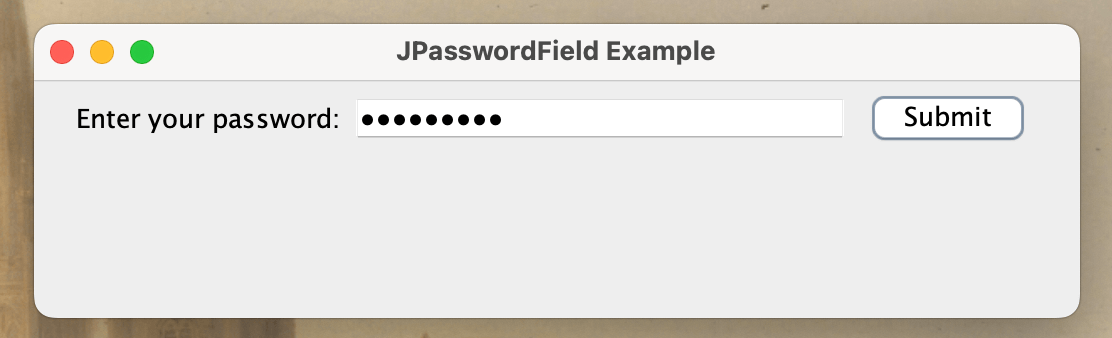
getPassword()Method:JPasswordFieldထဲက လျှို့ဝှက်နံပါတ်ကို ဖတ်ယူဖို့အတွက်getPassword()method ကို အသုံးပြုပါတယ်။ ဒီ method ကchar[](character array) အမျိုးအစားကို ပြန်ပေးပါတယ်။Stringနဲ့ တိုက်ရိုက်မပေးတာက လုံခြုံရေး (security) အကြောင်းပြချက်ကြောင့် ဖြစ်ပါတယ်။Stringတွေဟာ Java ရဲ့ Memory မှာ တာရှည်တည်ရှိနေနိုင်ပြီးchar[]ကတော့ အသုံးပြုပြီးတာနဲ့ ရှင်းလင်းပစ်လို့ရတာကြောင့် memory ထဲမှာ password တွေ ကြာရှည်မကျန်အောင် ကာကွယ်ပေးနိုင်ပါတယ်။
Event Handling with ActionListener
Button ကို နှိပ်လိုက်တဲ့အခါ
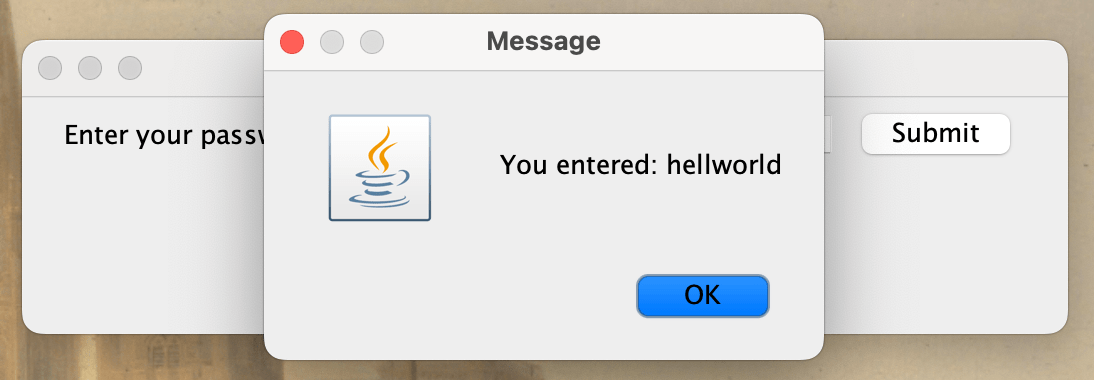
JPasswordFieldထဲက လျှို့ဝှက်နံပါတ်ကို ဖတ်ပြီး message dialog နဲ့ ပြသဖို့အတွက်ActionListenerinterface ကို အသုံးပြုထားပါတယ်။javabutton.addActionListener(new ActionListener() { public void actionPerformed(ActionEvent e) { char[] password = passwordField.getPassword(); // Password ကို char array အဖြစ် ရယူခြင်း String passwordText = new String(password); // char array ကို String ပြောင်းလဲခြင်း (ပြဖို့အတွက်သာ) JOptionPane.showMessageDialog(frame, "You entered: " + passwordText); // Message box ပြခြင်း } });java// လုံခြုံရေးအတွက်: password ကို အသုံးပြုပြီးတာနဲ့ char array ထဲက တန်ဖိုးတွေကို ရှင်းပစ်ခြင်း for(int i = 0; i < password.length; i++) { password[i] = 0; // သို့မဟုတ် ' ' (space) လိုမျိုး character နဲ့ အစားထိုးပါ။ }
JPasswordField ၏ အခြား Features များ
JPasswordField သည် password ကဲ့သို့သော sensitive data များကို ရယူရုံသာမက၊ အောက်ပါ features များကိုလည်း ပံ့ပိုးပေးပါသည်။
Echo Character
JPasswordFieldထဲမှာ ရိုက်ထည့်လိုက်တဲ့ စာလုံးတွေကို ဖုံးကွယ်ပြီး ဘယ်လို character နဲ့ ပြသမယ်ဆိုတာကို သင်ကိုယ်တိုင် သတ်မှတ်နိုင်ပါတယ်။ Default အားဖြင့်တော့ Star ပုံစံ (*) ကို အသုံးပြုပါတယ်။ example#နဲ့ ပြချင်ရင်:javapasswordField.setEchoChar('#'); // Default အားဖြင့် '*' ကို အသုံးပြုပါသည်။
- လျှို့ဝှက်နံပါတ်တွေကို တကယ်တမ်း စာလုံးအဖြစ် ပြသချင်ရင် (example "Show Password" checkbox လိုမျိုး)
setEchoChar((char) 0);ကို သုံးနိုင်ပါတယ်။
Text Limit
JPasswordFieldထဲမှာ ရိုက်ထည့်နိုင်တဲ့ စာလုံးရေ အရှည်ကို ကန့်သတ်ချင်ရင်JTextFieldမှာလိုပဲsetDocumentmethod ကို အသုံးပြုနိုင်ပါတယ်။javapasswordField.setDocument(new PlainDocument() { @Override public void insertString(int offs, String str, AttributeSet a) throws BadLocationException { if (getLength() + str.length() <= 10) { // Maximum 10 characters super.insertString(offs, str, a); } } });
TIP
မှတ်ချက်။ ဒီ code snippet ဟာ
javax.swing.text.PlainDocument,javax.swing.text.AttributeSet,javax.swing.text.BadLocationExceptionစတဲ့ class တွေကို import လုပ်ဖို့ လိုအပ်ပါတယ်။